Automating Chrome History Collection using CrowdStrike and Tracecat - Part 3: Professional Polish
Introduction
Wahay, we’ve made it to the final stretch. To recap in parts 1 and 2, we built the foundation (device validation, RTR session initialisation, user discovery, and Chrome detection) and conducted the heavy lifting (integrity hashing, evidence copying, zip packaging, RTR cloud upload), now we need to finish properly.
Part 3 covers the cleanup and closure phase. We’ll remove the temporary files (the copies and the zip) we created in /tmp, verify they’re actually gone, close the RTR session gracefully, and document everything. This is the professional polish that adds the finishing touches to make this a production-ready production workflow.
One of the many things I really appreciate about this workflow is that the entire cleanup phase runs automatically. There’s no manual verification, no forgotten sessions, no lingering artifacts, its just a clean execution from start to finish.
The Workflow Architecture
| Phase | Actions | Status |
|---|---|---|
| Phase 1: Foundation | Create case → Find device → Validate macOS → Init RTR → Discover users → Find Chrome | ✅ Link to post |
| Phase 2: Collection | Hash files → Copy to /tmp → Validate → Zip → Hash zip → Upload | ✅ Link to post |
| Phase 3: Professional Polish | Remove temp files → Verify cleanup → Close RTR → Final audit | ✅ Covered in this post |
Section 1: Evidence Cleanup
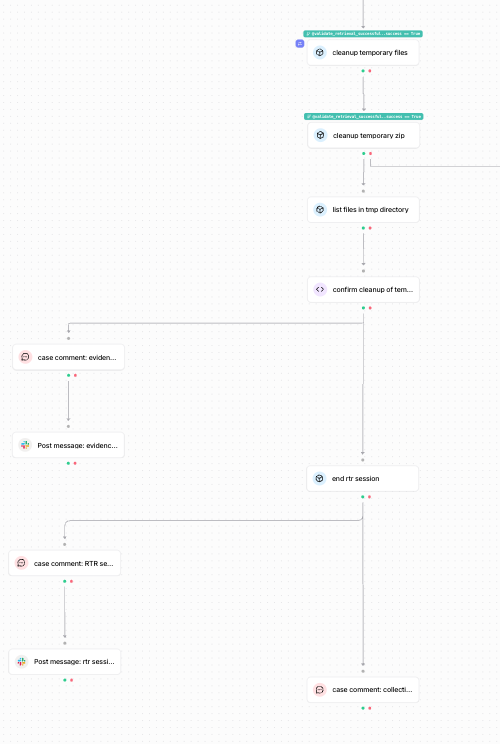
With our evidence documents uploaded to RTR cloud, we now need to remove the temporary files we created during collection. We want to follow the forensic principle of minimising our footprint on the endpoint, we collected what we needed, now we need to undo the changes we made. To avoid potential evidence contamination for future investgations, we need to remove the copied files in /tmp so that future responders will not mistake them for live artifacts. The original Chrome history files remain untouched in the user’s profile; we’re only removing the working copies we created. This allows us to also preserve the endpoint state as close to its original after collection.
Action 1: Removing Copied History Files - cleanup_temporary_files
What it does:
Iterates through the list of copied history files and removes each one from /tmp using CrowdStrike’s RTR rm command. This runs as a for_each loop, creating one deletion operation per profile that was copied.
Why it matters:
We copied files to /tmp as a step before zipping. Those copies served their purpose and now need removal.
The for_each loop reuses the same copy_commands list from Part 2. Each item in that list contains the target_path we used when copying, so we know exactly which files to delete.
How to add it:
- Create a new action with type
tools.falconpy.call_commandand add the below config. - Set dependency on
validate_retrieval_successful
operation_id: BatchAdminCmd
params:
  body:
    base_command: rm
    command_string: rm "${{ var.file.target_path }}"
    batch_id: ${{ ACTIONS.extract_session_information.result.batch_id }}
    session_id: ${{ ACTIONS.extract_session_information.result.session_id }}
- Add
run ifcondition:
${{ ACTIONS.validate_retrieval_successful.result.success == True }}
- Add
for loop:
${{ for var.file in ACTIONS.prepare_copy_commands.result.copy_commands }}
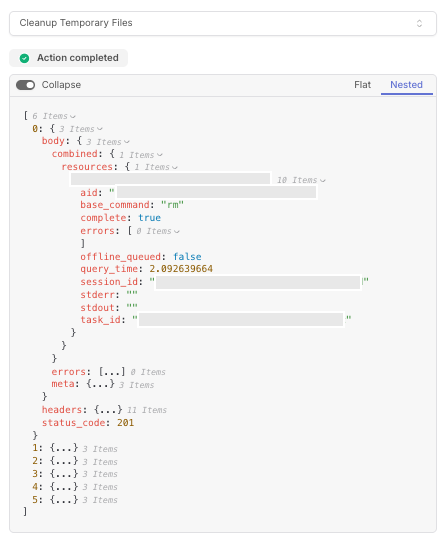
What you’ll see: If the action is successful, you will see confirmation that each history file copy was removed from /tmp. You sould verify they were removed by opening the /tmp directory with the below command.
open /tmp
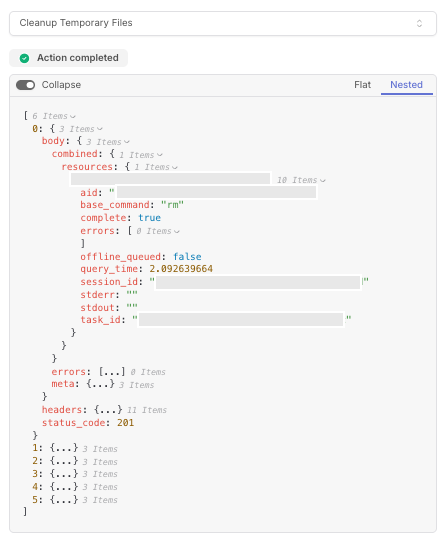
Action 2: Removing the Evidence ZIP - cleanup_temporary_zip
What it does:
Removes the evidence ZIP archive from /tmp after successful upload to RTR cloud. Uses the same timestamped filename generated during the packaging phase.
Why it matters:
The ZIP file is the largest artifact we created. It contains all the copied history files compressed together. Once uploaded to RTR cloud, there’s no reason to keep it on the endpoint.
We reference the exact filename from generate_utc_timestamp.result.zip_filename rather than using a wildcard. This ensures we only delete what we created, nothing else.
How to add it:
- Create a new action with type
tools.falconpy.call_commandand add the below config. - Set dependency on
cleanup_temporary_files
operation_id: BatchAdminCmd
params:
  body:
    base_command: rm
    command_string: rm "${{ ACTIONS.generate_utc_timestamp.result.zip_filename }}"
    batch_id: ${{ ACTIONS.extract_session_information.result.batch_id }}
    session_id: ${{ ACTIONS.extract_session_information.result.session_id }}
- Add
run ifcondition:
${{ ACTIONS.validate_retrieval_successful.result.success == True }}
What you’ll see: If the action is successful, you will see confirmation that the ZIP archive was removed from /tmp. Run the command we referenced in the previous action to verify the removal too.
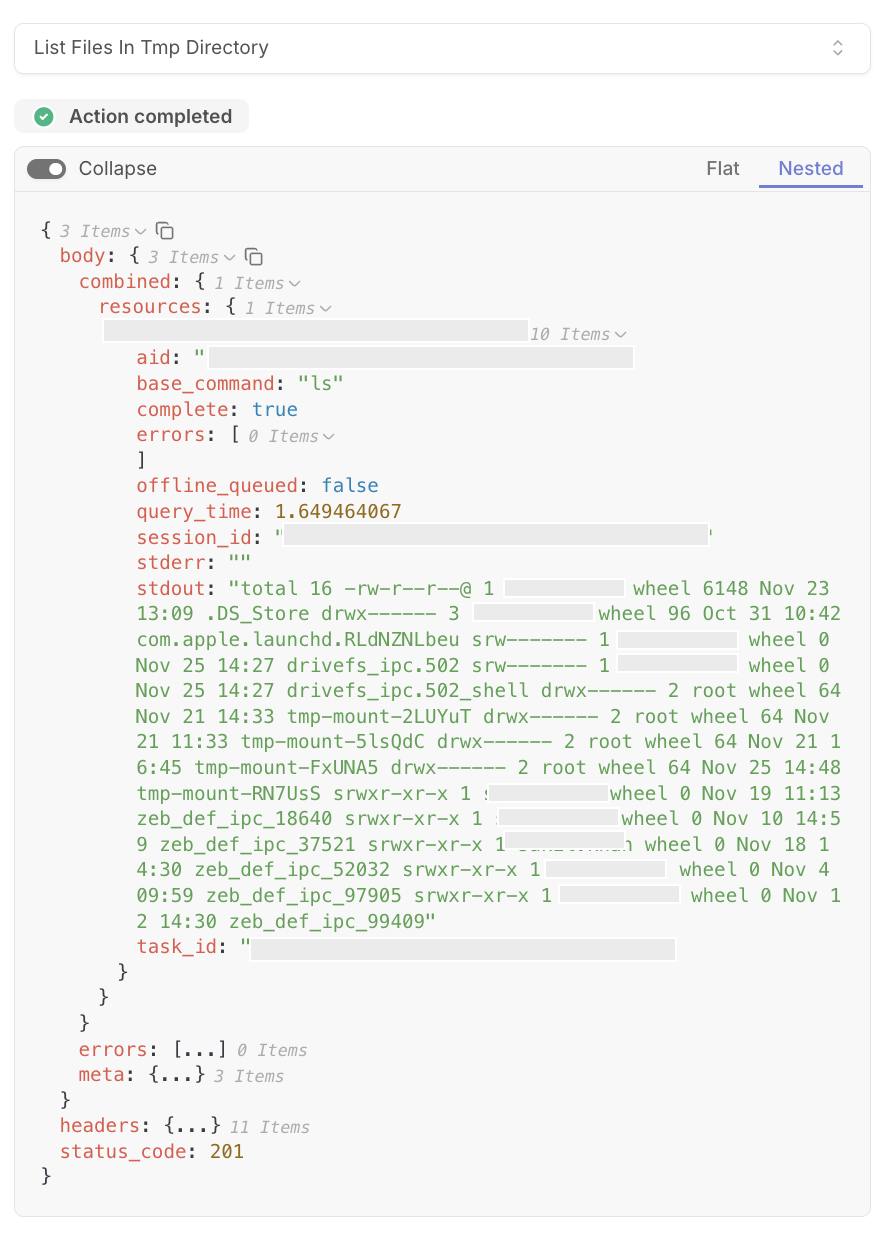
Action 3: Listing /tmp Contents - list_files_in_tmp_directory
What it does:
Lists the contents of /tmp after cleanup operations complete. This provides verification data for the next action to confirm our files are actually gone.
Why it matters:
We’re following one of the core principles we’ve been emphasising throughout this workflow: trust but verify. The rm commands might report success even if something went wrong. By listing the directory contents after cleanup, we can programmatically confirm the files no longer exist.
The 5-second start_delay gives the filesystem time to update after the deletion commands. This prevents race conditions where we check too quickly and get stale directory listings.
How to add it:
- Create a new action with type
tools.falconpy.call_commandand add the below config. - Set dependency on
cleanup_temporary_zip - Set
start_delayto5.0seconds
operation_id: BatchAdminCmd
params:
  body:
    base_command: ls
    command_string: ls -l /tmp/
    batch_id: ${{ ACTIONS.extract_session_information.result.batch_id }}
    session_id: ${{ ACTIONS.extract_session_information.result.session_id }}
What you’ll see: If the action is successful, you will see the contents of /tmp which should no longer contain our workflow artifacts.
Action 4: Verifying Cleanup Success - confirm_cleanup_of_temporary_files
What it does:
Parses the /tmp directory listing to verify that both the copied history files and the ZIP archive have been successfully removed. Returns a clear success/failure status with verification details.
Why it matters:
This is the final check for our cleanup phase. The script looks for specific patterns: the case-numbered ZIP filename and the _History suffix we used for copied files. If either pattern appears in the directory listing, cleanup failed and we need to know about it.
The script handles the complexity of checking multiple cleanup results (remember, cleanup_temporary_files is a for_each loop) and correlates them with the directory listing. It also checks for actual errors in the cleanup commands, not just missing files.
How to add it:
- Create a new action with type
core.script.run_pythonand add the below config. - Set dependency on
list_files_in_tmp_directory
inputs:
  listing_result: ${{ ACTIONS.list_files_in_tmp_directory.result }}
  case_timestamp_info: ${{ ACTIONS.generate_utc_timestamp.result }}
  cleanup_result: ${{ ACTIONS.cleanup_temporary_files.result }}
  device_id: ${{ ACTIONS.extract_session_information.result.device_id }}
script: |
  def main(listing_result, case_timestamp_info, cleanup_result, device_id):
         # cleanup_result is a LIST from the for_each loop
         # We need to check all results, not just one
         if not cleanup_result or not isinstance(cleanup_result, list):
             return {
                 "cleanup_successful": False,
                 "error": "Cleanup command did not return results",
                 "verification_status": "FAILED: Cleanup command failed to execute"
             }

         # Check if ANY cleanup command had errors
         cleanup_errors = []
         for result in cleanup_result:
             cleanup_resources = result.get("body", {}).get("combined", {}).get("resources", {})
             if device_id in cleanup_resources:
                 cleanup_device = cleanup_resources[device_id]
                 cleanup_stderr = cleanup_device.get("stderr", "")
                 cleanup_complete = cleanup_device.get("complete", False)

                 # Collect any errors for reporting
                 if not cleanup_complete or cleanup_stderr:
                     cleanup_errors.append(cleanup_stderr)

         if cleanup_errors:
             return {
                 "cleanup_successful": False,
                 "error": f"Cleanup errors: {cleanup_errors}",
                 "verification_status": "FAILED: Cleanup command encountered errors"
             }

         # Now verify files are actually gone from directory listing
         resources = listing_result.get("body", {}).get("combined", {}).get("resources", {})
         if not resources or device_id not in resources:
             return {
                 "cleanup_successful": False,
                 "error": "Unable to verify cleanup",
                 "verification_status": "UNKNOWN"
             }

         device_result = resources[device_id]
         stdout = device_result.get("stdout", "")

         # Build patterns to search for our specific files
         case_number = case_timestamp_info.get("case_number", "")
         zip_pattern = f"case_{case_number}_chrome_history_collection_"
         history_pattern = "_History"

         # Check if our files still exist
         zip_file_exists = zip_pattern in stdout and ".zip" in stdout
         history_files_exist = history_pattern in stdout and zip_pattern not in stdout

         if not zip_file_exists and not history_files_exist:
             status = "SUCCESS: All temporary files and zip removed"
             cleanup_successful = True
         else:
             status = "FAILED: Files and zip still exist"
             cleanup_successful = False

         return {
             "cleanup_successful": cleanup_successful,
             "verification_status": status,
             "raw_stdout": stdout  # Keep for debugging
         }
What you’ll see: If the action is successful, you will see a verification status confirming all temporary files have been removed.
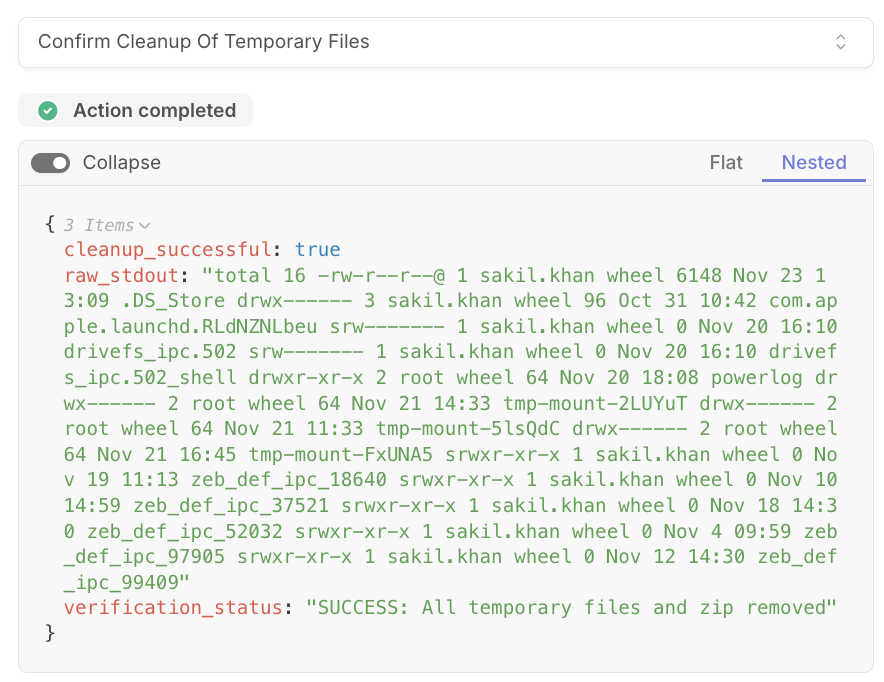
I’ve created a video with the /tmp directory open whilst the workflow is running to show the temporary files being removed.
Section 2: Documentation and Notifications
With cleanup verified, we now need to document everything and notify the team via Slack. This creates the final audit trail entries and ensures the relevante stakeholders know the workflow completed successfully.
Action 5: Case Documentation - case_comment_evidence_files_removed
What it does:
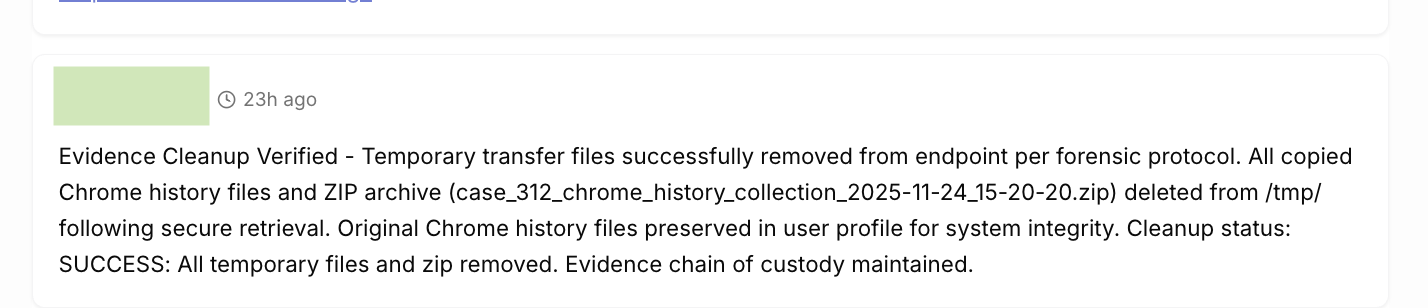
Creates a case comment documenting the successful cleanup of temporary files. Includes the specific ZIP filename that was removed and the verification status from our cleanup check.
Why it matters:
This case comment closes the loop on evidence handling. It documents that temporary files were removed, which files specifically, and that original evidence remains intact. Anyone reviewing this case later on will understand exactly what happened. The comment explicitly notes that original Chrome history files are preserved in the user profile. This prevents confusion and confirms that we only deleted our working copies, not the source evidence.
How to add it:
- Create a new action with type
core.cases.create_comment - Set dependency on
confirm_cleanup_of_temporary_files
case_id: ${{ ACTIONS.create_case.result.id }}
content: |-
  Evidence Cleanup Verified - Temporary transfer files successfully removed from endpoint per forensic protocol.
  All copied Chrome history files and ZIP archive (case_${{ ACTIONS.generate_utc_timestamp.result.case_number }}_chrome_history_collection_${{ ACTIONS.generate_utc_timestamp.result.utc_timestamp }}.zip) deleted from /tmp/ following secure retrieval.
  Original Chrome history files preserved in user profile for system integrity.
  Cleanup status: ${{ ACTIONS.confirm_cleanup_of_temporary_files.result.verification_status }}.
  Evidence chain of custody maintained.
What you’ll see: If the action is successful, you will see a new comment added to the case documenting the cleanup.
Action 6: Slack Update - post_message_evidence_cleanup_complete
What it does:
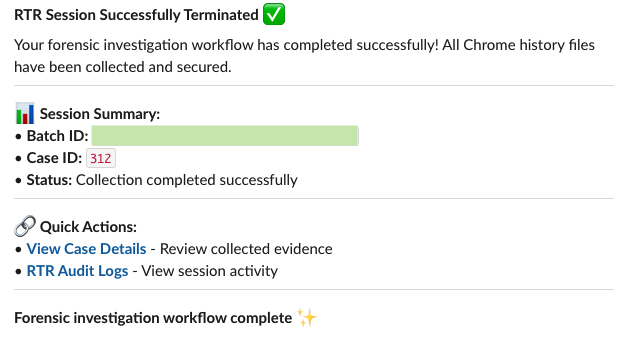
Sends a Slack notification announcing successful evidence cleanup. Includes details about what was removed, verification status, and links to case details and RTR audit logs.
Why it matters:
This provides a real-time alert to your team that notifies them cleanup completed successfully. This notification confirms the endpoint is back to its pre-workflow state. The RTR audit logs link allows users to verify the cleanup.
How to add it:
- Create a new action with type
tools.slack.post_message - Set dependency on
case_comment_evidence_files_removed - Update channel with your Slack channel ID
- Customise the URLs to match your instances
channel: XXXXXXX  # Replace with your channel ID
blocks:
  - type: section
    text:
      type: mrkdwn
      text: |-
        🧹 *Evidence Cleanup Verified* :white_check_mark:

        Temporary transfer files successfully removed from endpoint per forensic protocol.
  - type: divider
  - type: section
    text:
      type: mrkdwn
      text: |-
        *Cleanup Details:*
        • ZIP archive deleted from /tmp/ following secure retrieval
        • Original Chrome history files preserved in user profile
        • Status: `${{ACTIONS.confirm_cleanup_of_temporary_files.result.verification_status}}`
        • Case ID: `${{ACTIONS.create_case.result.case_number}}`

        Evidence chain of custody maintained.
  - type: divider
  - type: section
    text:
      type: mrkdwn
      text: |-
        *🔗 Quick Actions:*
        • <https://X.tracecat.com/workspaces/[workspace-id]/cases|*View Case Details*> - Review collected evidence
        • <https://X.crowdstrike.com/real-time-response/sessions/audit-logs|*RTR Audit Logs*> - View session activity
What you’ll see: If the action is successful, you will see a Slack message posted in your configured channel.
Section 3: Session Closure
The final phase will be closing the RTR session properly and documenting the workflow completion.
Action 7: Closing the RTR Session - end_rtr_session
What it does:
Terminates the RTR session we initialised in Part 1. Uses the RTR_DeleteSession operation with the session ID we’ve been using throughout the workflow.
Why it matters:
Proper closure is good hygiene as an open session is a potential security consideration as it maintains an active connection to the endpoint. Furthermore, if we no longer need to be connected to the endpoint, we need to close it gracefully. This action only runs if cleanup was successful. If cleanup failed, we want the session to remain open so a responder can investigate what went wrong.
How to add it:
- Create a new action with type
tools.falconpy.call_commandand add the below config. - Set dependency on
confirm_cleanup_of_temporary_files
operation_id: RTR_DeleteSession
params:
  session_id: ${{ ACTIONS.extract_session_information.result.session_id }}
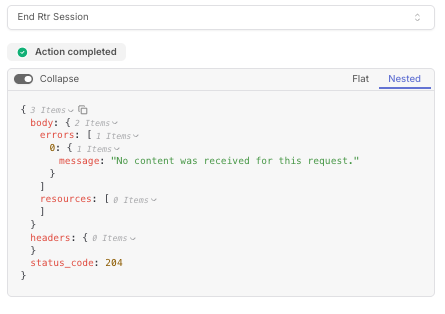
What you’ll see: If the action is successful, you will see that the RTR session was terminated. Don’t be alarmed by the 204 status code, you may see an error but if you check the RTR audit logs, you will see that the RTR session was terminated after this action runs.
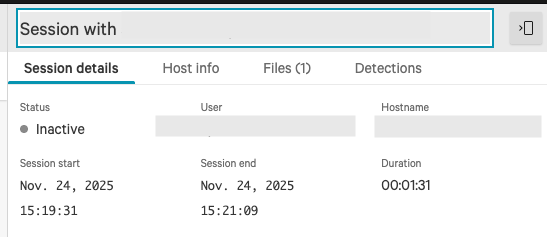
Action 8: Case Documentation - case_comment_rtr_session_terminated
What it does:
Creates a case comment documenting the graceful closure of the RTR session. This marks the official end of all evidence collection activities.
Why it matters:
This is the closing entry in the audit trail we’ve created for this workflow. It timestamps when the RTR session ended, confirming no further remote access occurred after this point. For incident response, this documentation is important as it references that your interaction with the endpoint concluded.
How to add it:
- Create a new action with type
core.cases.create_comment - Set dependency on
end_rtr_session
case_id: ${{ACTIONS.create_case.result.id}}
content: |-
  RTR Session Terminated - Remote terminal response session gracefully closed at completion of forensic collection.
  All evidence collection activities concluded.
What you’ll see: If the action is successful, you will see a new comment added to the case documenting session closure.

Action 9: Slack Update - post_message_rtr_session_terminated
What it does:
Sends the final Slack notification announcing successful workflow completion. Includes session summary with batch ID and case ID, confirmation of successful collection, and links to case details and RTR audit logs.
Why it matters:
This is the final message. After all the validation checkpoints, all the error handling, all the documentation, this notification tells your team the workflow completed successfully from start to finish. Evidence collected, cleanup verified, session closed.
How to add it:
- Create a new action with type
tools.slack.post_message - Set dependency on
case_comment_rtr_session_terminated - Update channel with your Slack channel ID
- Customise the URLs to match your instances
channel: XXXXXXX  # Replace with your channel ID
blocks:
  - type: section
    text:
      type: mrkdwn
      text: |-
        *RTR Session Successfully Terminated* ✅

        Your forensic investigation workflow has completed successfully! All Chrome history files have been collected and secured.
  - type: divider
  - type: section
    text:
      type: mrkdwn
      text: |-
        *📊 Session Summary:*
        • *Batch ID:* `${{ACTIONS.extract_session_information.result.batch_id}}`
        • *Case ID:* `${{ACTIONS.create_case.result.case_number}}`
        • *Status:* Collection completed successfully
  - type: divider
  - type: section
    text:
      type: mrkdwn
      text: |-
        *🔗 Quick Actions:*
        • <https://X.tracecat.com/workspaces/[workspace-id]/cases|*View Case Details*> - Review collected evidence
        • <https://X.crowdstrike.com/real-time-response/sessions/audit-logs|*RTR Audit Logs*> - View session activity
  - type: divider
  - type: section
    text:
      type: mrkdwn
      text: "*Forensic investigation workflow complete* ✨"
What you’ll see: If the action is successful, you will see a Slack message posted announcing workflow completion.
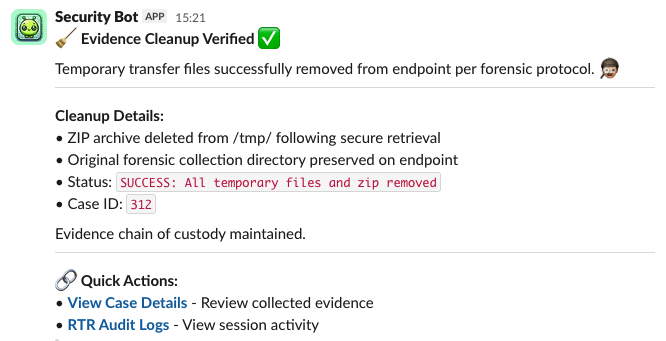
Action 10: Final Summary - case_comment_collection_summary
What it does:
Creates a comprehensive summary comment on the case documenting the complete forensic collection: number of users processed, number of Chrome profiles collected, confirmation of evidence integrity, and the case ID for reference.
Why it matters:
This final comment provides an executive summary. If this case was viewed at a later period, the read would be able to understand what happened without reading through every individual comment. This summary provides that at-a-glance view: how many users, how many profiles, evidence integrity maintained, case ID for cross-referencing.
How to add it:
- Create a new action with type
core.cases.create_comment - Set dependency on
end_rtr_session
case_id: ${{ACTIONS.create_case.result.id}}
content: |-
  Forensic Collection Summary - Successfully collected Chrome browser history for ${{ACTIONS.parse_user_results.result.user_count}} user(s) from ${{ACTIONS.parse_all_chrome_history_files_found.result.history_file_count}} profile(s).
  Evidence integrity maintained throughout collection process.
  RTR session completed.
  Case ID: ${{ACTIONS.generate_utc_timestamp.result.case_id}}.
What you’ll see: If the action is successful, you will see a final summary comment added to the case.

Conclusion
That’s it, we’ve completed the tutorial. In the final 10 actions, we’ve added the professional polish that transforms this into a production-ready forensic workflow:
- ✅ Removes all temporary files created during collection
- ✅ Verifies cleanup actually succeeded
- ✅ Closes RTR session gracefully
- ✅ Documents every step in case management
- ✅ Notifies the team at each milestone via Slack
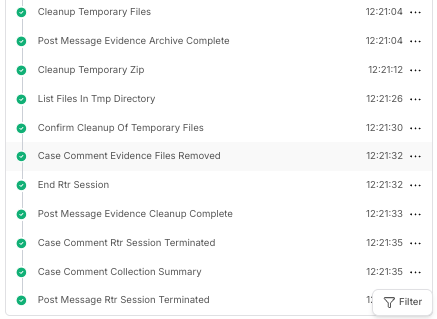
The Complete Picture
Across all three parts, we’ve built a workflow that:
- Validates the target device and establishes a secure RTR connection
- Discovers users and locates Chrome installations automatically
- Generates integrity hashes before touching any files
- Copies evidence with validation at every checkpoint
- Packages everything into a timestamped, hashed archive
- Uploads to RTR cloud for secure retrieval
- Cleans up without destroying evidence
- Documents the entire chain of custody
- Notifies the team throughout the process
What used to take 30-45 minutes of careful manual work now runs in under 3 minutes. And it runs the same way every time, no missed steps, no forgotten documentation, no lingering sessions.
Video: The Workflow in Action
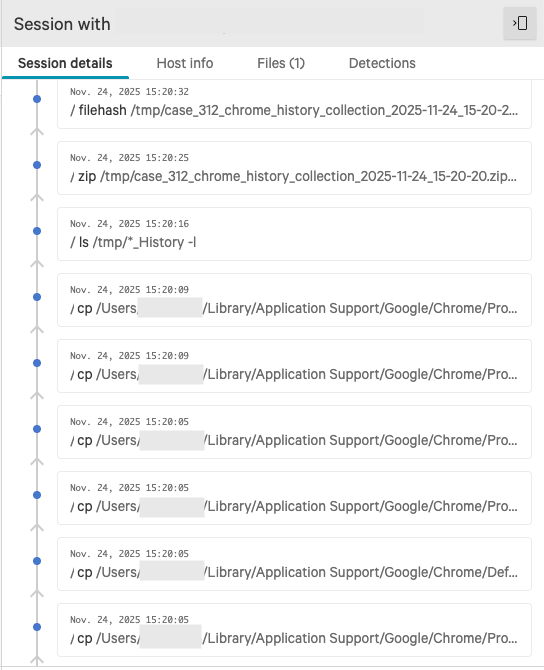
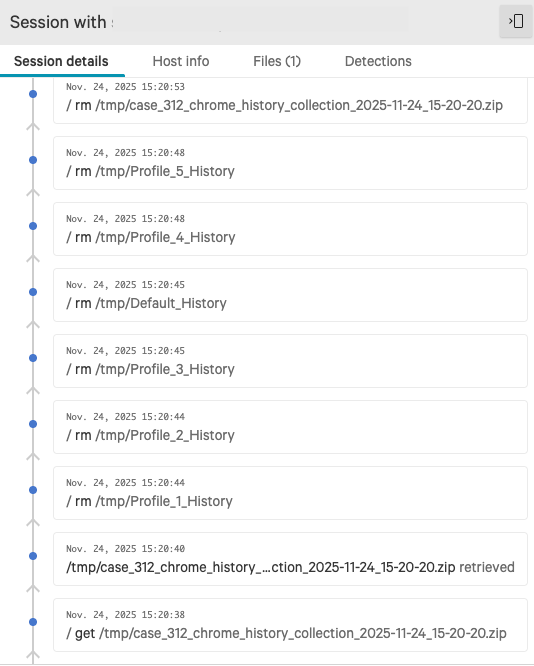
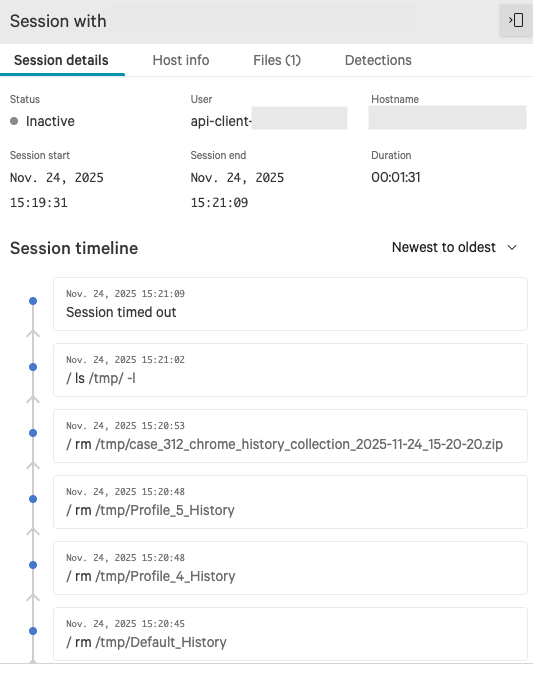
View the commands run in the CrowdStrike RTR Audit Logs
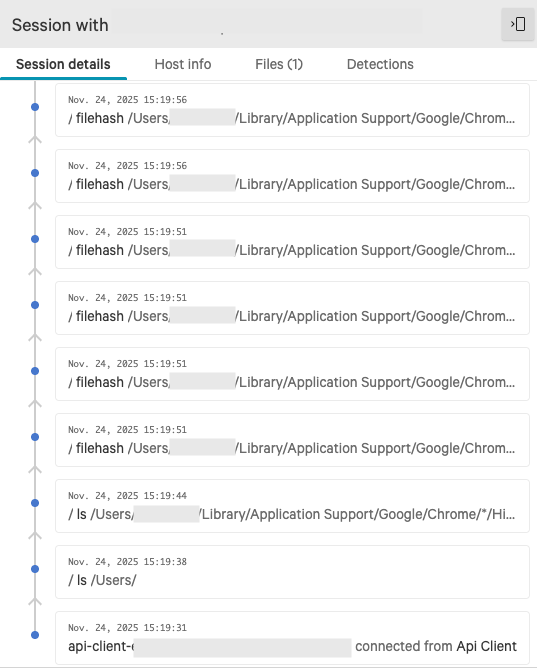
What’s Next?
This workflow handles Chrome history on macOS, but the patterns apply broadly. You could extend this to:
- Firefox, Safari, or another browser history
- Windows endpoints (different paths, same logic)
In addition to the value created from this workflow, there’s more to be extracted by the approach. Identify a manual forensic process, break it into multiple steps with validation checkpoints, add documentation at every phase, and let Tracecat handle the execution.
Challenge For You: Run the complete workflow end-to-end and verify your evidence in CrowdStrike RTR cloud. Check your Tracecat case for the full audit trail.
If you have any questions or if you’re stuck, drop me a DM or send me an email. I’m also in the official Tracecat Discord.
Get the Workflow The complete workflow YAML is available on GitHub: https://github.com/generalplantain/tracecat-workflows
Import it into your Tracecat instance, configure your secrets, and you’re ready to collect evidence.